Introduction
If your screen breaks or has dead pixels, the most cost effective solution is to replace the screen.
What you need
-
-
Place the laptop on a flat surface with the bottom side facing up.
-
Place the tip of a spudger or finger into the hole on the battery release slider.
-
-
-
Open the laptop, keeping the screen on the table.
-
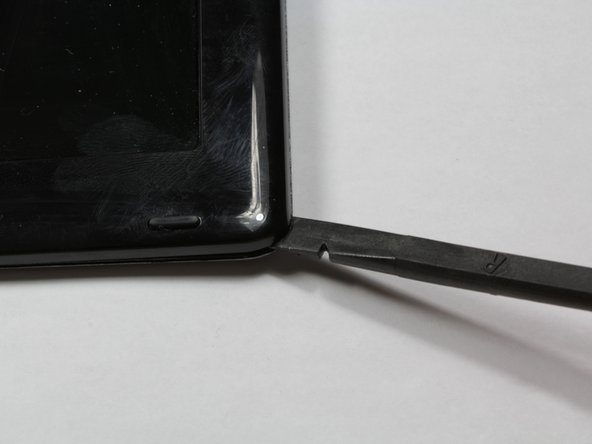
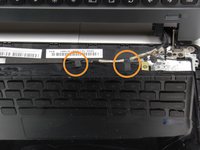
Use a spudger to unclip the top left and right sides of the bezel. You should feel and hear the clips releasing as you do this.
-
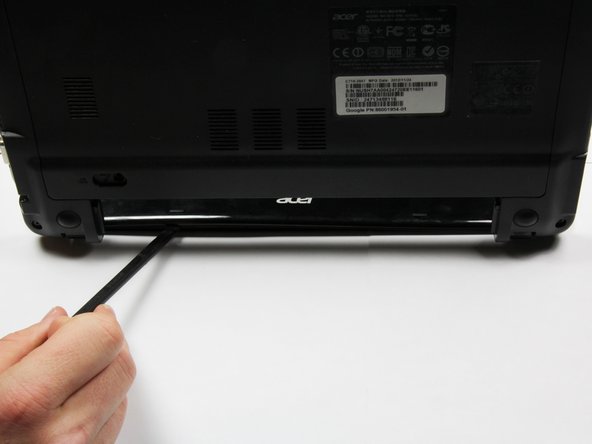
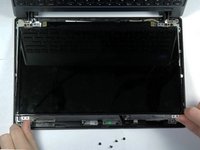
Turn the device around 180 degrees, keeping the screen on the table. Use the spudger on the bottom of the screen to unclip the bezel between the hinges.
-
-


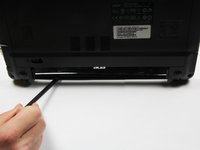


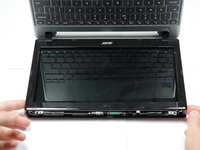
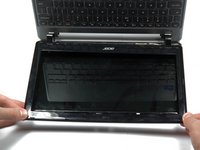


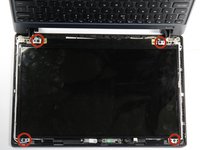


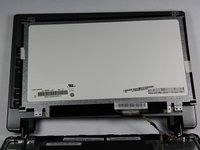
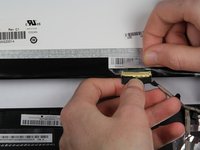

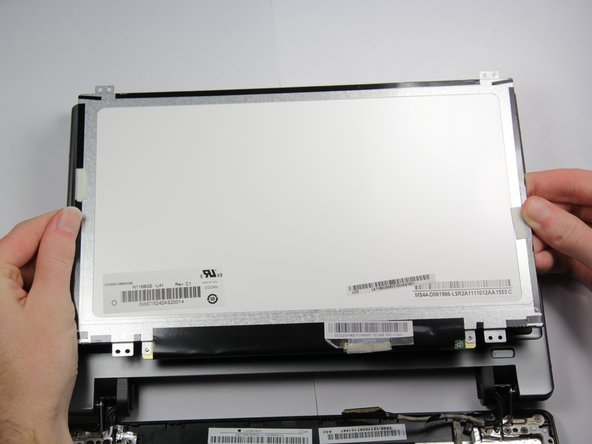
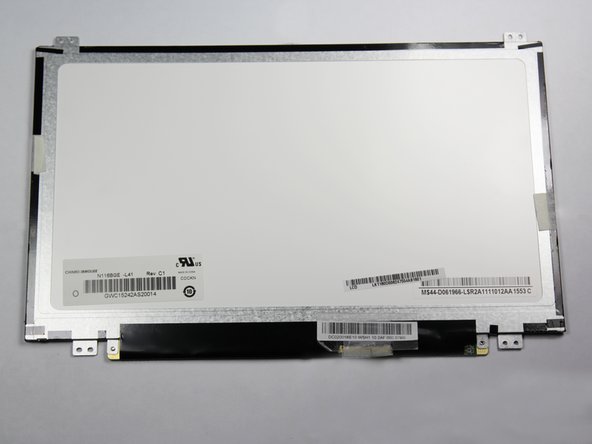
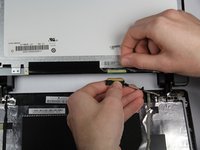
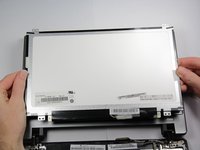
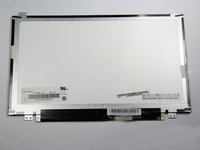
To reassemble your device, follow these instructions in reverse order. Be sure to tape the cable back to the screen to avoid display problems.
Cancel: I did not complete this guide.
33 other people completed this guide.

Team

Cal Poly, Team 13-3, Forte Fall 2013 Member of Cal Poly, Team 13-3, Forte Fall 2013
CPSU-FORTE-F13S13G3
5 Members
14 Guides authored
8 Guide Comments
I am 69 years old and bought myself and 4 grandchildren Acer Chromebooks. I heard the screen messing up was quite common. So when my screen went first, I knew I had to learn to fix it, or spend another small fortune if they all broke down. So here I am. The screen is out..next adventure..putting a new one in. Will return here to do that. Thanks for the site.
Great guide. Didn't realize it was that simple...i'd like a little information on which screen was purchased for this model.
Thanks!
I like it. The link for the screen is dead for me but I will find one.
Thanks for this. Just repaired 3 laptops for my classroom! Super easy.
