Introduction
Follow this guide to replace the microphone in the right ear cup of your AirPods Max headset.
If your AirPods Max are having a hard time picking up your voice or have intermittent issues, the microphone might need to be replaced. To try and figure out which microphone needs to be replaced, try coving over side and talking into the other.
What you need
-
-
Unplug and remove all cables and accessories.
-
To help stabilize the ear cups and prevent scratching them, consider placing your AirPods Max on a soft, clean cloth.
-
-
-
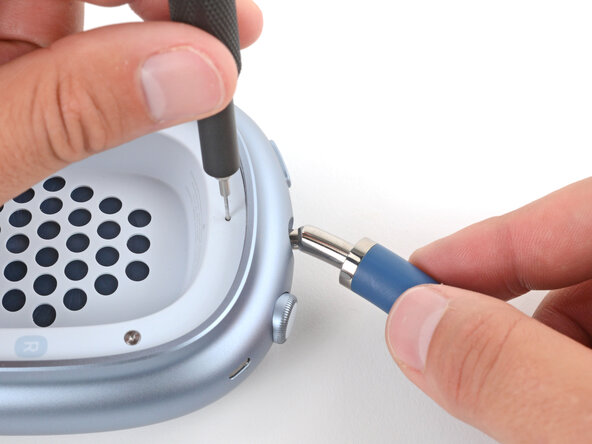
Insert a SIM eject tool, bit, or a small, straightened paperclip into the hole on the top edge of the right ear cup (labeled R).
-
Push down with your tool and pull the headband connector straight out of its socket.
-
-
-
Set the right ear cup down on a soft, clean cloth to prevent scratches and help stabilize the cup during your repair.
-
-
-
Use a P5 pentalobe screwdriver to turn (not remove) the four speaker housing screws to the unlocked position:
-
Turn the top left and bottom right screws counterclockwise.
-
Turn the top right and bottom left screws clockwise.
-
-
Tool used on this step:iOpener€12.95
-
Option 1: Apply a few drops of high-concentration isopropyl alcohol (>90%) in the gap around the perimeter of the speaker housing. Wait one minute to allow the alcohol to soften the adhesive.
-
Option 2: Heat the speaker housing with an iOpener or hair dryer. Focus the heat around the perimeter, applying small amounts for short periods of time.
-
-
Tool used on this step:iSesamo Opening Tool€9.95
-
Insert the flat side of your opening tool into the gap between the left side of the speaker housing and the lip of the ear cup (opposite the R marking).
-
Pry up the speaker housing until you can grip it with your fingers, applying constant pressure to allow the adhesive to separate.
-
-
Tool used on this step:FixMat€36.95
-
Use a Torx Plus 1IP screwdriver to remove the 1.7 mm‑long screw securing the speaker housing cable cover.
-
-
-
Use a spudger to pry up and disconnect the speaker housing press connector.
-
-
-
Use a Torx Plus 3IP screwdriver to remove three speaker driver screws:
-
Two 6.0 mm‑long screws
-
One 6.0 mm‑long screw that's slightly thicker than the other two
-
Remove the 5.1 mm‑long standoff screw using one of the two methods below:
-
Option 1: Stick a small flathead screwdriver into one of the four notches on top of the screw and use it to slowly turn the screw.
-
Option 2: Use a Torq-Set 6 screwdriver to remove the screw, applying constant downward force to avoid damaging the screw.
-
-
-
Lift the top edge of the speaker and remove it, being careful not to touch the diaphragm.
-
-
-
Remove the two connector cover screws:
-
One 7.0 mm‑long Torx Plus 3IP screw
-
One 1.7 mm‑long Torx Plus 1IP screw
-
-
-
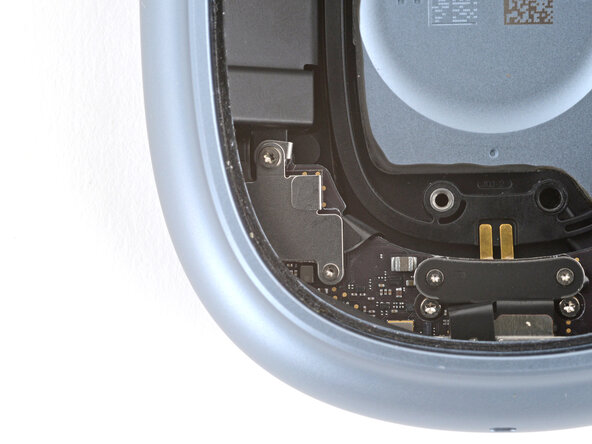
Use the point of a spudger to pry up and disconnect the battery press connector (the smaller one, not the one that folds under the board).
-
-
Tool used on this step:Flexible Extension€6.95
-
Use a Torx Plus 5IP screwdriver to remove the two screws securing the sides of the battery cells.
-
If the screw isn't coming out once fully loosened, use tweezers to pull it out.
-
-
-
Slide the battery cells out of their recesses one at a time and remove them.
-
-
-
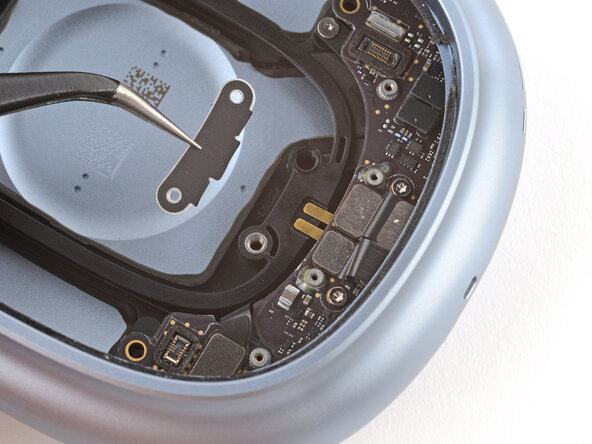
Use a Torx Plus 1IP screwdriver to remove the two 1.7 mm‑long screws securing the power board connectors cover.
-
-
-
-
Use a spudger to pry up and disconnect the three press connectors on the power board.
-
-
-
Use a Torx Plus 3IP screwdriver to remove the two 5.7 mm‑long screws securing the power board.
-
-
-
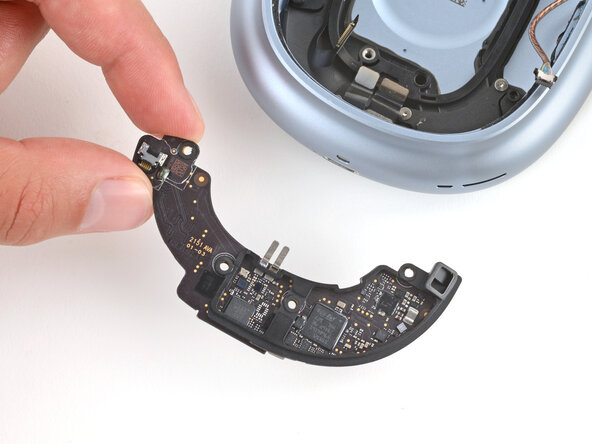
Slowly pull the power board out of its recess and flip it over the side of the ear cup, giving you access to the connector on the underside.
-
-
-
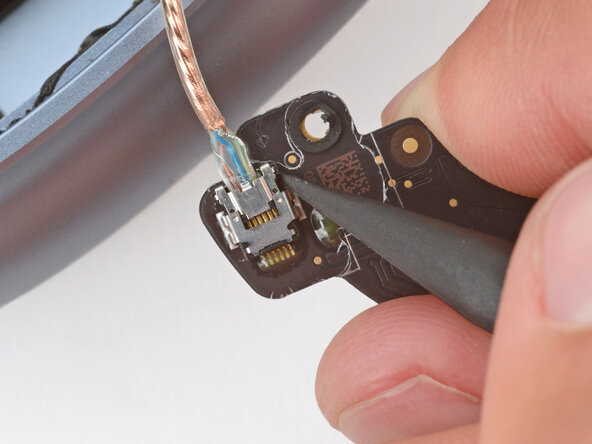
Use the point of a spudger to press on alternating sides of the sliding connector tabs to "walk" it out of the socket.
-
-
-
Use tweezers or your fingers to gently lift the mic cable off the top of the charging port.
-
-
Tool used on this step:iFixit Precision 4 mm Screwdriver Bit€2.95
-
Remove the four screws securing the charging port:
-
Two 3.7 mm‑long Torx Plus 3IP screws
-
Two 2.2 mm‑long Torx Plus 1IP screws
-
-
-
While holding the microphone cable out of the way, use tweezers to slide the charging port out of its recess and remove it.
-
-
-
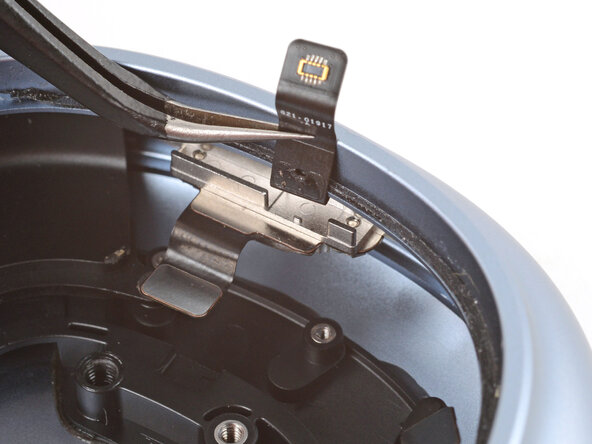
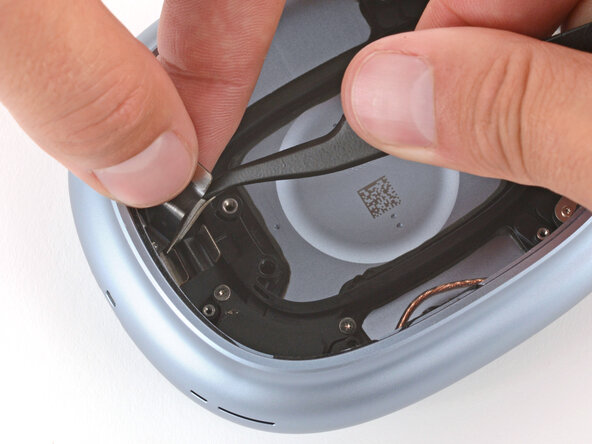
Slide one arm of your angled tweezers under the side of the microphone opposite the ribbon cable.
-
Pry the microphone away from the ear cup and remove it.
-
-
-
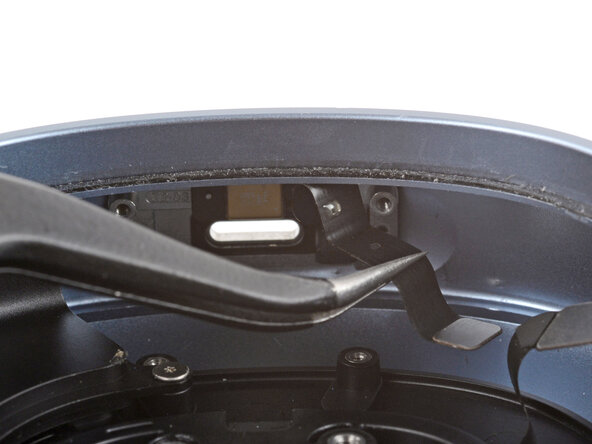
Use tweezers to remove all the old microphone adhesive.
-
If you're replacing the adhesive, cut a thin piece the length of the distance between the two alignment pegs and apply it where the old adhesive was.
-
-
-
If your microphone has pre-installed adhesive, remove the liner.
-
Use tweezers to gently grip the microphone and put it into place.
-
Make sure the alignment pegs go through their cutouts and the cable is on the right side.
-
With the microphone properly aligned, use the flat end of a spudger to push the microphone into place.
-
-
-
Use tweezers to gently push the cable inwards towards the microphone.
-
-
-
Align the charging port with its screw holes and plug in a charging cable, making sure the microphone cable goes over the top of the port.
-
-
Tool used on this step:Magnetizer / Demagnetizer€4.95
-
Install the four screws securing the charging port:
-
Two 3.7 mm‑long Torx Plus 3IP screws
-
Two 2.2 mm‑long Torx Plus 1IP screws
-
-
-
Flip the microphone cable down over the top of the charging port so the alignment peg goes through its cutout.
-
-
-
Use the point of a spudger to push on alternating sides of the copper cable's connector until it slides fully into the socket on the underside of the power board.
-
-
-
Flip the power board over and slide it into its recess, making sure the three cables that connect to the charging port don't get stuck underneath.
-
-
-
Make sure the three cables are oriented so they can connect to the board.
-
The gold speaker contacts should be sitting in their small groove.
-
Check that each screw has its rubber gasket installed.
-
-
-
Use a Torx Plus 3IP screwdriver to install the two 5.7 mm‑long screws securing the power board.
-
-
-
Use your finger to press down and reconnect the three power board press connectors.
-
-
-
Put the connector cover into place on the center of the power board.
-
-
-
With the exposed sides of the battery cells facing down, slide the battery cable under the lip of the ear cup so it sits on top of the charging port.
-
Place both battery cells into their recesses.
-
-
-
Use a Torx Plus 3IP screwdriver to install the three screws securing the battery cells:
-
Two 4.0 mm‑long screws
-
One 7.0 mm‑long screw
-
-
-
Use a spudger or your fingers to press down and connect the battery press connector.
-
-
-
Slide the battery connector cover's two tabs into their slots and lay the cover in place.
-
-
-
Gently lay the speaker driver into place, making sure the side with gold connector pins lines up with their contacts in the shell.
-
-
-
Use a Torx Plus 3IP screwdriver to install three speaker driver screws:
-
One 6.0 mm‑long screw that's slightly thicker than the other two
-
Two 6.0 mm‑long screws
-
Install the 5.1 mm‑long standoff screw using a small flathead or Torq-Set 6 screwdriver.
-
-
-
Use tweezers and scissors to remove any sections of bunched-up or overlapping adhesive that would prevent the housing from sitting perfectly flat.
-
Apply thin, double-sided adhesive where you removed the original, using short sections to help match the curve of the lip.
-
-
-
Hold the speaker housing up and use your finger to press down and reconnect its press connector.
-
-
-
Slide the tab on the connector cover into its slot and lay the cover down.
-
-
-
Flip the speaker housing into the cup and press it into place around the perimeter.
-
-
-
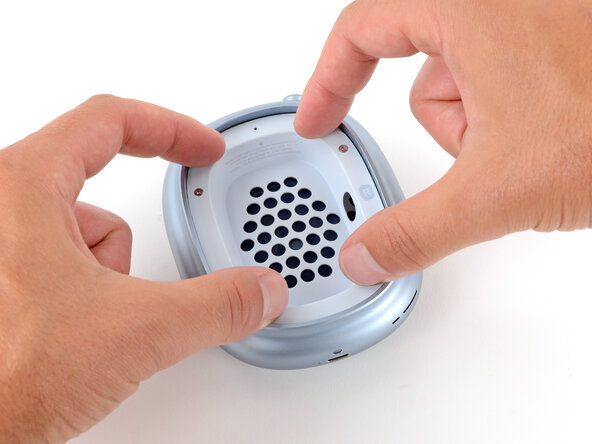
Use a P5 pentalobe screwdriver to turn the four speaker housing screws to the locked position:
-
Turn the top left and bottom right screws clockwise.
-
Turn the top right and bottom left screws counterclockwise.
-
-
-
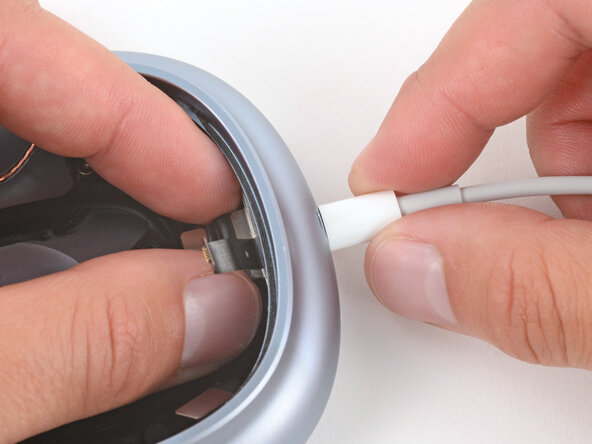
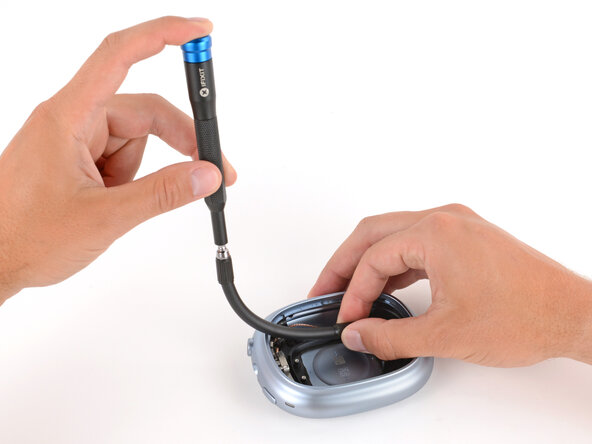
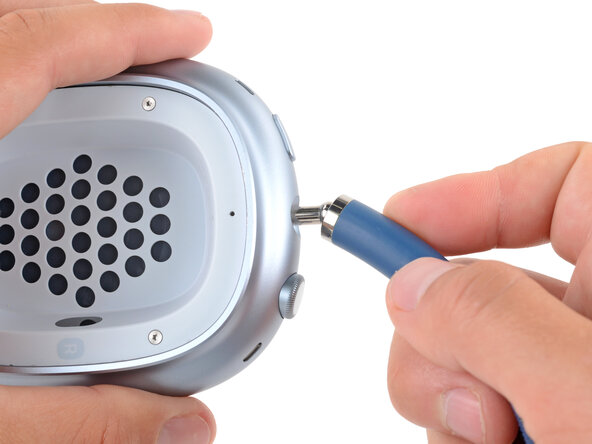
Hold the ear cup steady with one hand, and use your free hand to firmly push the headband connector into its slot, twisting it slightly—it should click into place.
-

























Congratulations on completing your repair!
Take your e-waste to an R2 or e-Stewards certified recycler.
Repair didn’t go as planned? Try some basic troubleshooting, or ask our Answers community for help.

