Introduction
Your smartphone goes with you everywhere and picks up dust, skin oils and lint on a daily basis.
What many people don't realize: A dirty charging port can cause the cable to no longer sit properly and your device to charge slowly or not at all.
Clogged speaker grilles make music sound muffled and calls quieter.
Greasy smudges on the camera lens make photos blurry, and dirt in crevices and under the case can even damage the housing over time.
Regular cleaning doesn't just give your phone a nicer feel in the hand, it also keeps your smartphone in top shape technically: better photos, clearer sound, reliable charging and ultimately a longer lifespan.
What you need
-
Tool used on this step:Precision Cleaning Kit€14.95
-
Turn off your smartphone completely. On Apple devices, you typically need to press and hold the power button and a volume button at the same time. On most other smartphones, just press and hold the power button until the shutdown menu appears.
-
On Apple devices, slide the slider to the right to power off. On all other models, it's usually just a tap and confirm.
-
Place it on a clean, bright and flat surface.
-
Have all your materials laid out within arm's reach.
-
Wash your hands thoroughly to avoid leaving new fingerprints on the display.
-
-
-
Remove the case by starting at one corner and working your way around with your fingers.
-
Lightly dampen a cotton swab or the corner of a microfiber cloth with isopropyl alcohol and wipe down the outside and inside of the case.
-
For hard to reach spots, use a cotton swab moistened with isopropyl alcohol or water to clean out the corners.
-
-
-
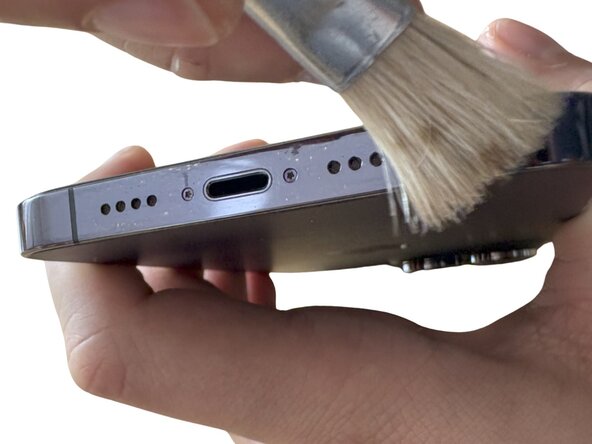
Use the soft brush to sweep loose dust off all sides of the device. Hold the smartphone at an angle so particles fall off.
-
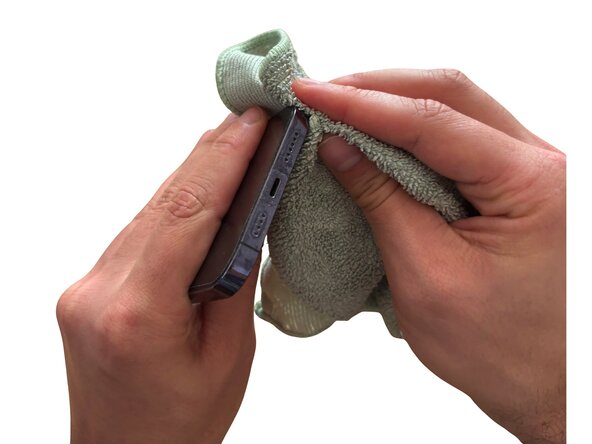
Lightly dampen one corner of a microfiber cloth with isopropyl alcohol and wipe down all sides as well as the back of the housing.
-
For stubborn grime along the edges, use a plastic toothpick or a cotton swab, lightly dipped in isopropyl alcohol if needed, and run it along the edges. Apply only gentle pressure.
-
Finish by polishing with the dry part of the microfiber cloth.
-
-
-
-
If you have a USB-C connector, make sure to also clean the corners along the edges, as lint tends to get stuck there and can prevent a clean connection.
-
If you have a Lightning connector, pay attention to the contacts on the bottom. Be extremely careful here. That said, this connector type tends to be easier to clean.
-
-
-
Shine the flashlight of a second smartphone (or another light source) into the port.
-
Use an small brush or a plastic toothpick and carefully insert it. Run it along the inside of the port and gently lift the dust out.
-
Wipe the dust away with a brush or something similar. Repeat until the bottom of the port looks shiny.
-
-
-
Use a soft brush to sweep loose dust off the display before touching the surface. This prevents scratches from abrasive particles.
-
Lightly dampen one corner of the microfiber cloth with isopropyl alcohol. The cloth should be slightly damp, not wet.
-
Wipe the display in even, circular motions.
-
Immediately follow up with the dry side of the microfiber cloth until the display is streak free and shiny.
-
-
-
Hold the device tilted with the speaker facing downward.
-
Gently brush across the speaker grille with the soft brush, moving along the length of the slots.
-
On some models, the upper speaker is recessed into the housing. Gently run the plastic toothpick along it to remove any dirt from there.
-
-
-
Use the soft brush to sweep dust off the camera lens before touching it.
-
Lightly dampen one corner of the microfiber cloth with isopropyl alcohol.
-
Wipe the lens using very light pressure in small circular motions.
-
Immediately dry it with a dry part of the microfiber cloth.
-
-
-
Make sure the case is completely dry (at least 5 minutes after cleaning).
-
Place the smartphone into the case starting at one corner, then press the edges firmly until the case has snapped into place all the way around.
-






And your device is clean! Repeat this process regularly to get the most out of your smartphone. Just turn it back on and enjoy your freshly cleaned phone!
Cancel: I did not complete this guide.
One other person completed this guide.
Special thanks to these translators:
100%

Quahuay is helping us fix the world! Want to contribute?
Start translating ›

