Introduction
The battery that I am using is a DeWalt 20V Max Lithium Ion DCB 207. Most power tool batteries use internal 18650 batteries. I will be replacing the internal 18650 batteries.
What you need
-
-
Pry the two shells apart. It may be difficult to open, and it may require that you use a flat-head screwdriver to help pry it open.
-
There is a spring inside that is used for the locking mechanism, which is not secured and will fall out when the device is opened. Marked in orange
-
-
-
Remove the battery from the bottom shell. There may be glue, or it may be difficult to remove; use the pliers to help remove the battery pack. Areas that pliers can safely hold onto the pack are marked in green.
-
USE caution not to puncture the batteries, as they can release toxic fumes or may start a fire
-
-
-
Use a multimeter to determine if any battery cells can be reused. But since the terminals read zero, which means that my cells no longer have voltage.
-
If your cells have voltage, the safe operating range of 18650 batteries is 2.9V and 3.8V
-
-
-
-
Use caution when desoldering. Excessive heat to the batteries, even at zero voltage, can still release toxic fumes and cause a fire.
-
Use proper ventilation and a work station. A recommendation is to use a chisel tip for the soldering iron to heat the solder. And use a copper wick to remove the solder.
-
-
-
The main power lead (Red and Black wire) solder joint may use a solder that requires greater heat than the solder iron can provide. Use pliers to remove the nickel strip from the battery
-
Since the Main leads are not in a desirable condition, I will cut and add a new nickel strip to the main power leads
-
-
-
Start by noting the polarity of the batteries and how they are connected
-
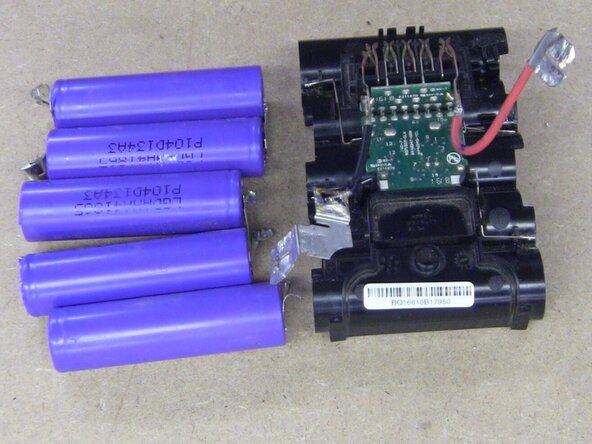
Then, by carefully removing the nickel strip from the batteries using pliers
-
Dispose of the batteries following your area's battery disposal procedures.
-
-
-
Use safety glass when spot welding, as sparks may fly
-
Set your spot welder to the appropriate settings when welding the batteries, as the heat can puncture them
-
Since the batteries that I'm using have a separate cable, you may have to cut a smaller nickel strip to reconnect the cable marked in red
-
To reconnect the main power leads, add a new nickel strip by spot welding the strip to the power lead. Shown in orange
-
-
-
Place the battery pack into the case, the 4 screws, and the spring
-
And test to see if it charges ( My battery shows blinking, so I know it is charging)
-




Thank you for following along, and I hope that this guide helps you fix your battery.
Cancel: I did not complete this guide.
One other person completed this guide.

