Free shipping on orders over €65*

Razer Blackwidow Tournament Edition Keyboard Metal Bar on Keys Replacement

What you need

  1. Razer Blackwidow Tournament Edition Keyboard Metal Bar on Keys Replacement, Metal Bar on Keys: step 1, image 1 of 1
    • Before you do anything, take a picture of the entire keyboard so as to know where the keys go at the end.

    • Gently start to remove the keys surrounding the keys with the bars in them.

  2. Razer Blackwidow Tournament Edition Keyboard Metal Bar on Keys Replacement: step 2, image 1 of 3 Razer Blackwidow Tournament Edition Keyboard Metal Bar on Keys Replacement: step 2, image 2 of 3 Razer Blackwidow Tournament Edition Keyboard Metal Bar on Keys Replacement: step 2, image 3 of 3
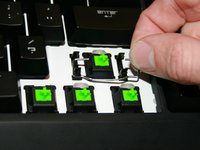
    • Move the key itself off of one side of the bar from where it connects to easily allow the other side to be removed as well.

    • Another way to do it is to push the bar itself out gently with the metal spudger.

  3. Razer Blackwidow Tournament Edition Keyboard Metal Bar on Keys Replacement: step 3, image 1 of 2 Razer Blackwidow Tournament Edition Keyboard Metal Bar on Keys Replacement: step 3, image 2 of 2
    • Gently pop the bar out from its sockets.

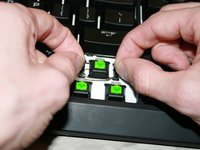
    • Pop the new bar back into the sockets.

  4. Razer Blackwidow Tournament Edition Keyboard Metal Bar on Keys Replacement: step 4, image 1 of 1
    • Gently slide one side of the key into the bar and then use the metal spudger to pop the other side into place.

    • Use the picture from the beginning if necessary to make sure all the keys are in the right place.

Conclusion

To reassemble your device, follow these instructions in reverse order.

1 Guide Comment

I bought my keyboard second hand have I either gotten a different keyboard or have the lad's been removed or is it a different model as I still have the Fn key which usually turns them on.

BettyBulldog123 a.k.a Betty - Reply Share

Add Comment

View Statistics:

Past 24 Hours: 2

Past 7 Days: 7

Past 30 Days: 28

All Time: 4,862