Free shipping on orders over €65*

This teardown is not a repair guide. To repair your Mac Pro 2009-2012, use our service manual.

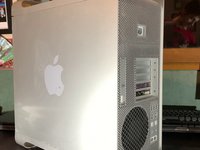
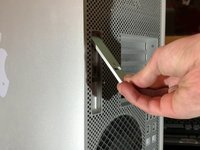
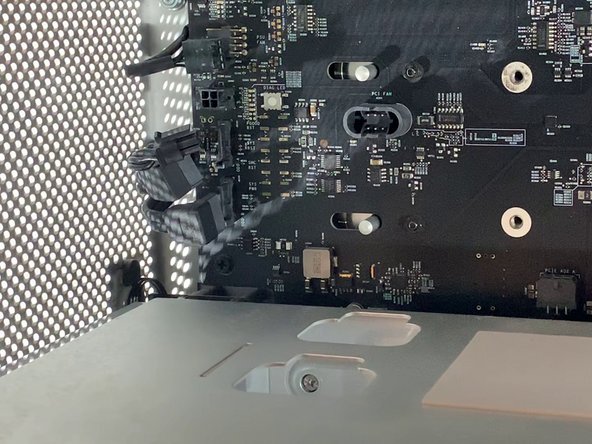
  1. Mac Pro 2009-2012 Teardown, Open the Case: step 1, image 1 of 3 Mac Pro 2009-2012 Teardown, Open the Case: step 1, image 2 of 3 Mac Pro 2009-2012 Teardown, Open the Case: step 1, image 3 of 3
    • To open the Mac Pro, you'll have to lift the clip on the back of the case

    • Leave the clip open during the entire disassembly!

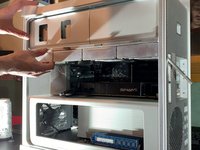
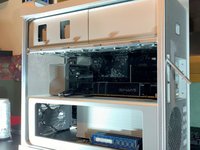
  2. Mac Pro 2009-2012 Teardown, Remove the side panel: step 2, image 1 of 2 Mac Pro 2009-2012 Teardown, Remove the side panel: step 2, image 2 of 2
    • Lift the flap to put it in the unlocked position. The panel should separate from the case without force.

  3. Mac Pro 2009-2012 Teardown, Remove the hard drives: step 3, image 1 of 2 Mac Pro 2009-2012 Teardown, Remove the hard drives: step 3, image 2 of 2
    • Then to remove the hard drives, pull them towards you with a bit of force.

  4. Mac Pro 2009-2012 Teardown, Remove the DVD drives: step 4, image 1 of 3 Mac Pro 2009-2012 Teardown, Remove the DVD drives: step 4, image 2 of 3 Mac Pro 2009-2012 Teardown, Remove the DVD drives: step 4, image 3 of 3
    • Simply pull the DVD drive bracket towards you, just like with the hard drives. Force it gently.

    • Unplug de power cable and the SATA cable of each DVD drive

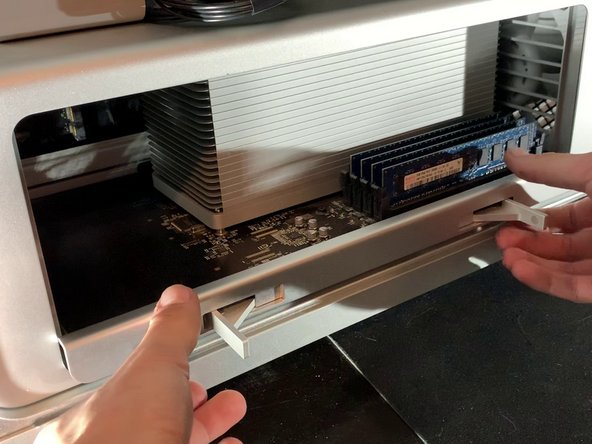
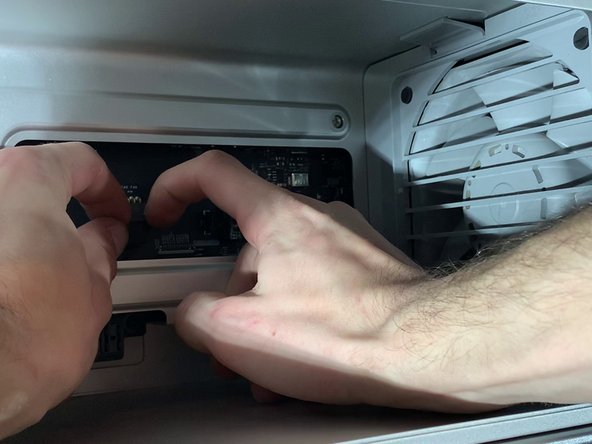
  5. Mac Pro 2009-2012 Teardown, Remove the CPU board: step 5, image 1 of 3 Mac Pro 2009-2012 Teardown, Remove the CPU board: step 5, image 2 of 3 Mac Pro 2009-2012 Teardown, Remove the CPU board: step 5, image 3 of 3
    • Press both latches to unlocket the bracket.

    • Then, pull it towards you.

    • You shouldn't need to apply much force.

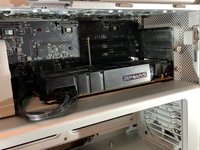
  6. Mac Pro 2009-2012 Teardown, Disconnect the GPU: step 6, image 1 of 2 Mac Pro 2009-2012 Teardown, Disconnect the GPU: step 6, image 2 of 2
    • Remove the 6 or 8 pin connector from your graphics card.

    • This step is optional, it will depend on the graphics card of your Mac Pro

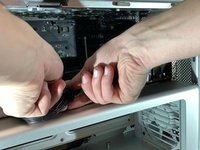
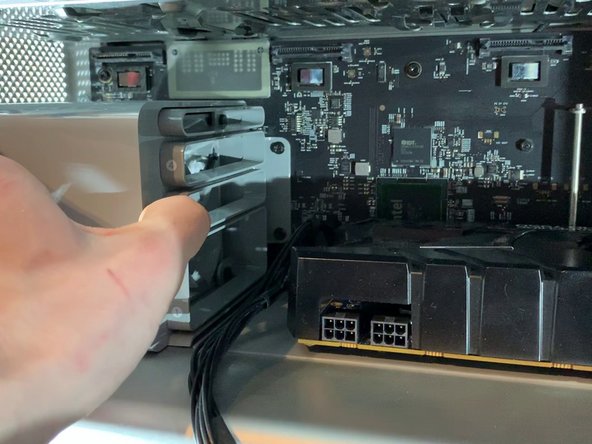
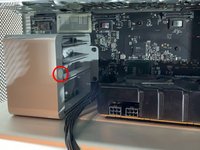
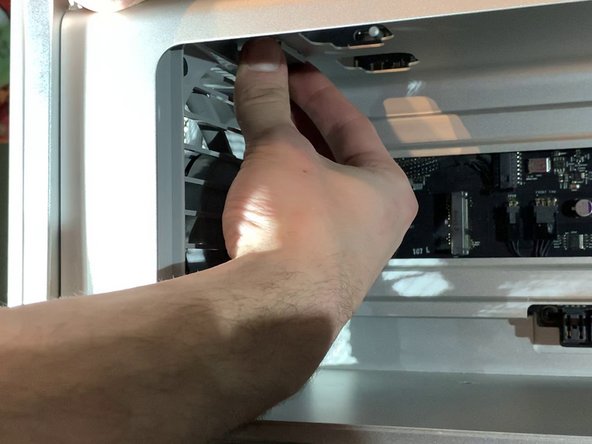
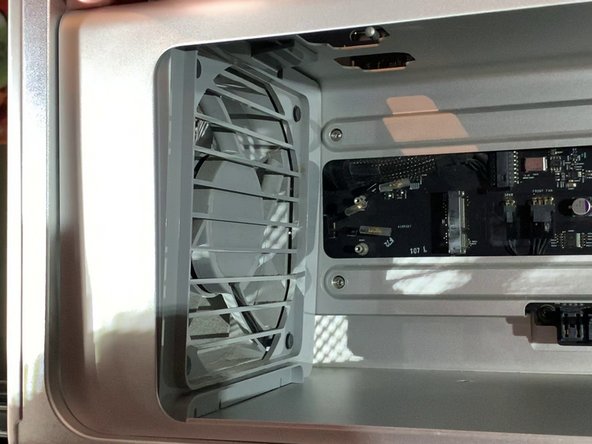
  7. Mac Pro 2009-2012 Teardown, Remove the GPU ( Optional ): step 7, image 1 of 3 Mac Pro 2009-2012 Teardown, Remove the GPU ( Optional ): step 7, image 2 of 3 Mac Pro 2009-2012 Teardown, Remove the GPU ( Optional ): step 7, image 3 of 3
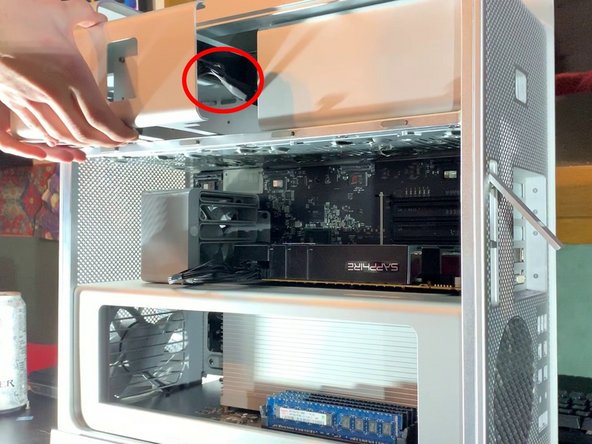
    • On the fan bracket, there is something like a button. Press it to move the support to the left (see picture)

    • Then pull the graphics card towards you to take it out of the case

    • This step is optional depending on the GPU of your Mac Pro

  8. Mac Pro 2009-2012 Teardown, Disconnect GPU support ( optional): step 8, image 1 of 2 Mac Pro 2009-2012 Teardown, Disconnect GPU support ( optional): step 8, image 2 of 2
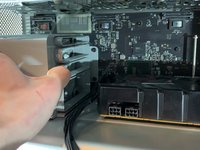
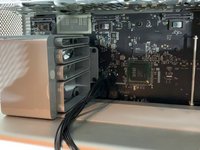
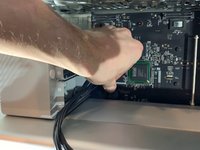
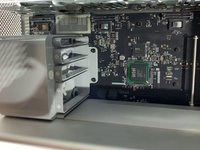
    • Disconnect the PCI-e cables from the motherboard

    • This step is optional depending on the GPU of your Mac Pro

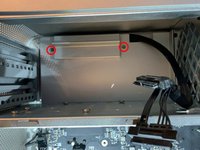
  9. Mac Pro 2009-2012 Teardown, Take out the PCI-e fan: step 9, image 1 of 3 Mac Pro 2009-2012 Teardown, Take out the PCI-e fan: step 9, image 2 of 3 Mac Pro 2009-2012 Teardown, Take out the PCI-e fan: step 9, image 3 of 3
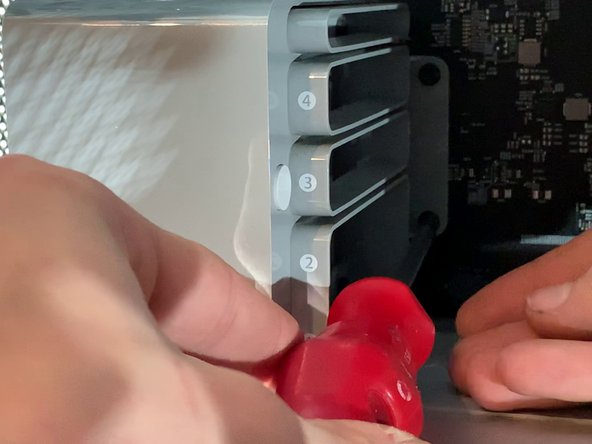
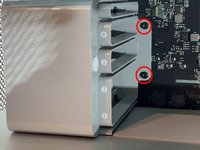
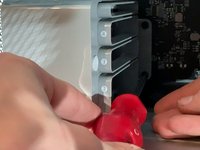
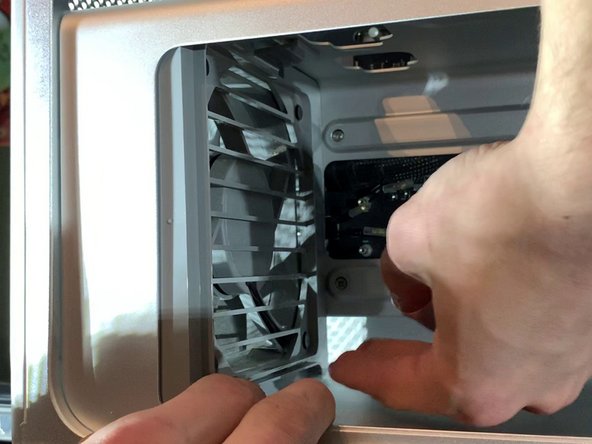
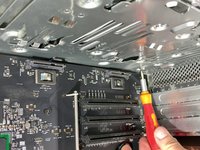
    • With a screwdriver, unscrew the two screws that hold the fan bracket to the board

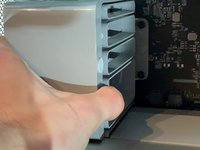
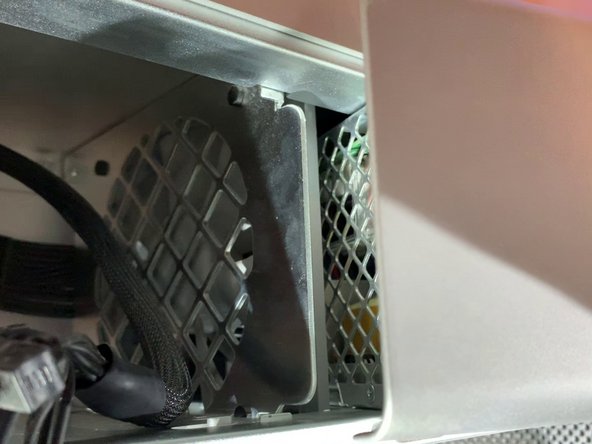
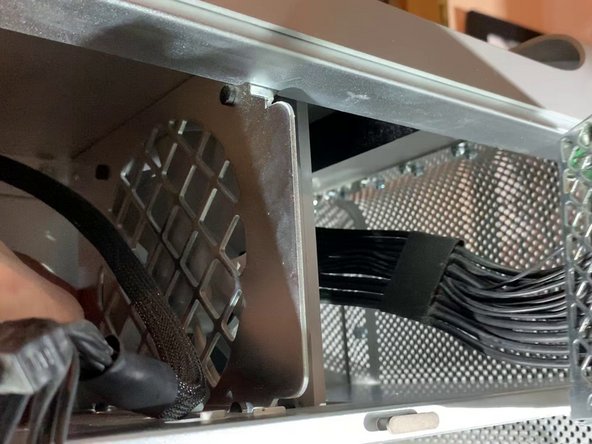
    • Pull the fan towards you (to move it away from the case)

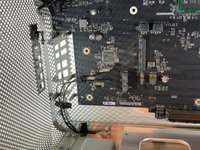
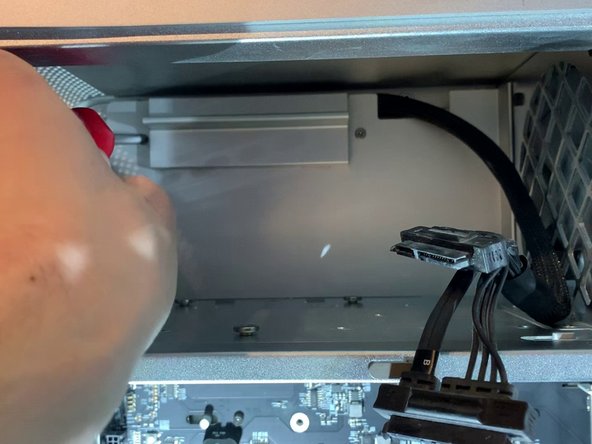
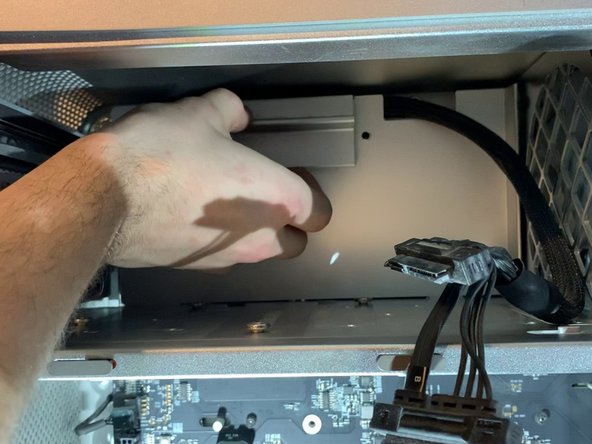
  10. Mac Pro 2009-2012 Teardown, Disconnect the SATA Cables: step 10, image 1 of 2 Mac Pro 2009-2012 Teardown, Disconnect the SATA Cables: step 10, image 2 of 2
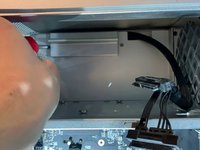
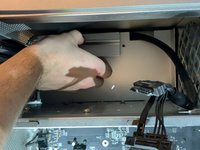
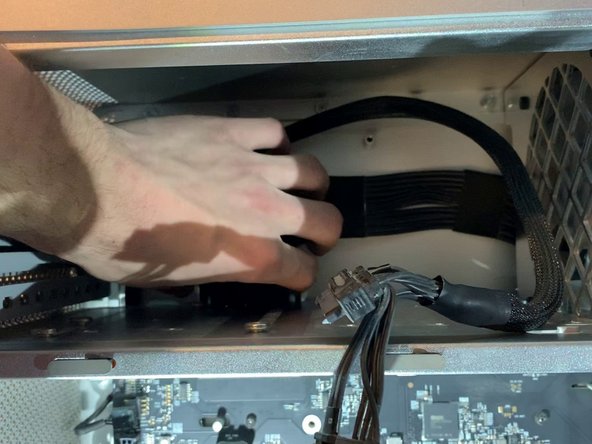
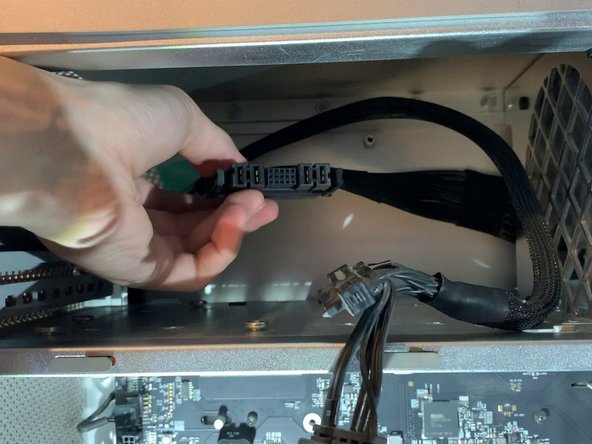
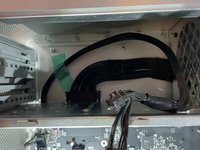
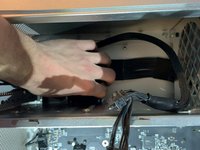
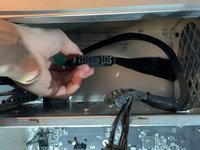
    • Behind the fan bracket, there are 2 SATA cables, a 4 pin mini power supply and a 4 pin fan

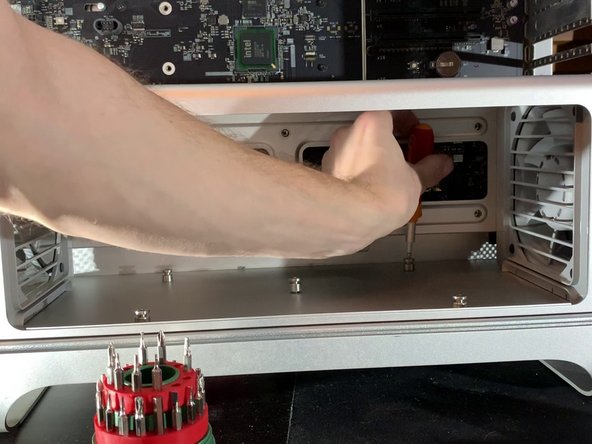
  11. Mac Pro 2009-2012 Teardown, Unscrew CPU support: step 11, image 1 of 3 Mac Pro 2009-2012 Teardown, Unscrew CPU support: step 11, image 2 of 3 Mac Pro 2009-2012 Teardown, Unscrew CPU support: step 11, image 3 of 3
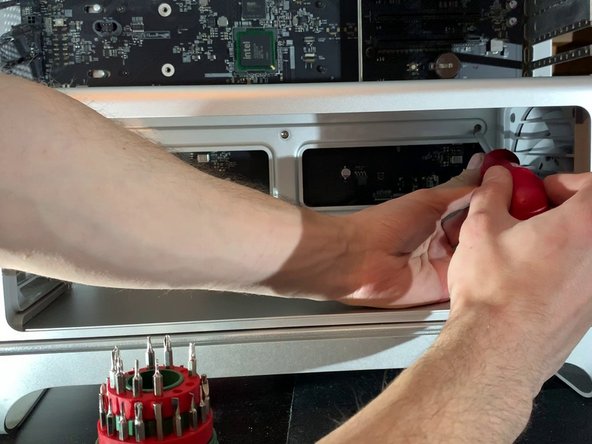
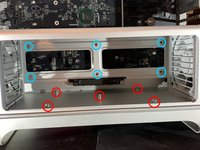
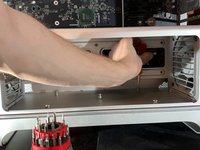
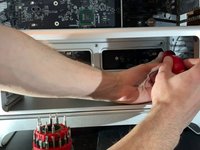
    • With a H2.5 screwdriver, unscrew the screws on the bottom of the bracket (photo 2)

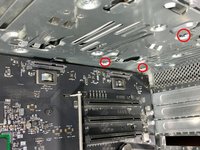
    • With a Phillips screwdriver, unscrew the screws on the bottom of the case (photo 3)

  12. Mac Pro 2009-2012 Teardown, Remove the CPU Fan: step 12, image 1 of 3 Mac Pro 2009-2012 Teardown, Remove the CPU Fan: step 12, image 2 of 3 Mac Pro 2009-2012 Teardown, Remove the CPU Fan: step 12, image 3 of 3
    • Remove the clip at the top of the fan

    • Pull on the top of the fan a bit.

  13. Mac Pro 2009-2012 Teardown, Remove the CPU Fan: step 13, image 1 of 2 Mac Pro 2009-2012 Teardown, Remove the CPU Fan: step 13, image 2 of 2
    • As with the top, remove the clip at the bottom and pull out the fan.

  14. Mac Pro 2009-2012 Teardown, Disconnect Fan and Speakers: step 14, image 1 of 3 Mac Pro 2009-2012 Teardown, Disconnect Fan and Speakers: step 14, image 2 of 3 Mac Pro 2009-2012 Teardown, Disconnect Fan and Speakers: step 14, image 3 of 3
    • Disconnect the 2 x 4 pin fan cables and the 1 x 2 pin speaker cable

    • Do not forget this step, or else you risk damaging the connectors on the motherboard and making your fans and speaker useless!

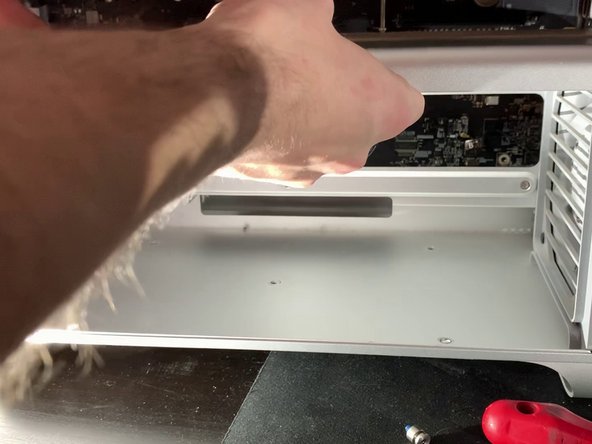
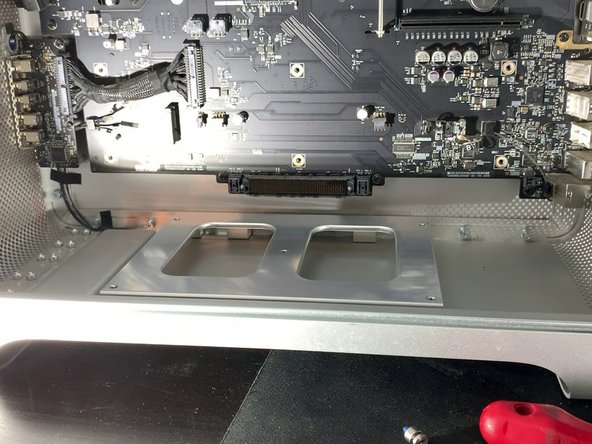
  15. Mac Pro 2009-2012 Teardown, Remove the CPU Support: step 15, image 1 of 3 Mac Pro 2009-2012 Teardown, Remove the CPU Support: step 15, image 2 of 3 Mac Pro 2009-2012 Teardown, Remove the CPU Support: step 15, image 3 of 3
    • Pull the CPU support towards you

    • Do not use force during this step. If it does not come out easily, ensure the fans are not blocking the exit.

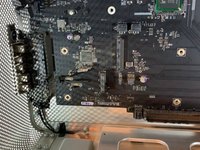
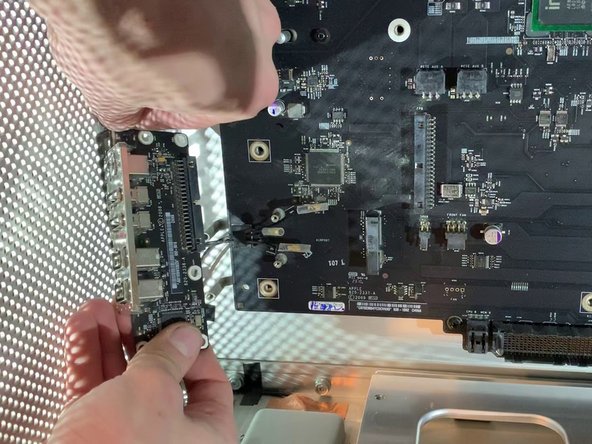
  16. Mac Pro 2009-2012 Teardown, Remove the expansion card connector: step 16, image 1 of 3 Mac Pro 2009-2012 Teardown, Remove the expansion card connector: step 16, image 2 of 3 Mac Pro 2009-2012 Teardown, Remove the expansion card connector: step 16, image 3 of 3
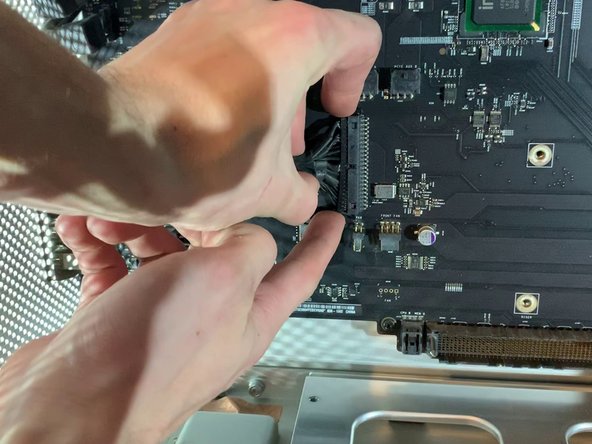
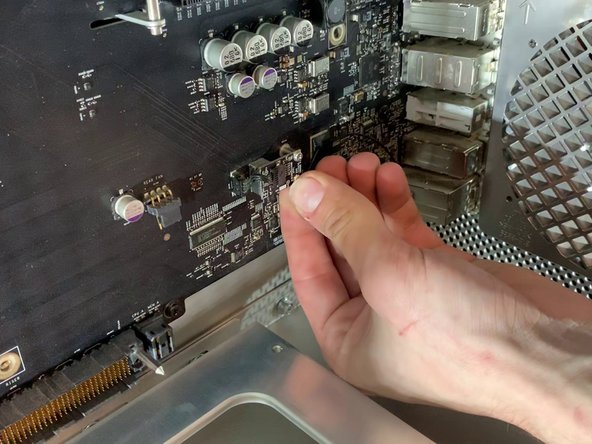
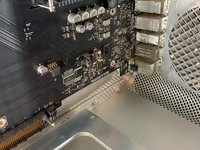
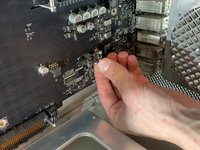
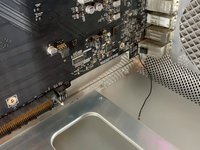
    • Remove the ribbon that connects the motherboard to the expansion card (USB, Jack, Power Off etc.)

    • Warning, remove the cable carefully so as not to bend the pins which are in the connector of the motherboard!

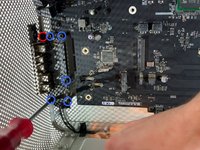
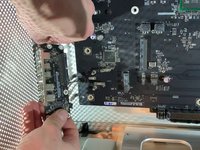
  17. Mac Pro 2009-2012 Teardown, Remove the expansion card: step 17, image 1 of 3 Mac Pro 2009-2012 Teardown, Remove the expansion card: step 17, image 2 of 3 Mac Pro 2009-2012 Teardown, Remove the expansion card: step 17, image 3 of 3
    • Unscrew the 5 screws that hold the card in place.

    • Be careful to unplug the power button of the card!

  18. Mac Pro 2009-2012 Teardown, Remove the cover: step 18, image 1 of 3 Mac Pro 2009-2012 Teardown, Remove the cover: step 18, image 2 of 3 Mac Pro 2009-2012 Teardown, Remove the cover: step 18, image 3 of 3
    • Unscrew the two screws and remove the cover

  19. Mac Pro 2009-2012 Teardown, Unplug the power supply: step 19, image 1 of 3 Mac Pro 2009-2012 Teardown, Unplug the power supply: step 19, image 2 of 3 Mac Pro 2009-2012 Teardown, Unplug the power supply: step 19, image 3 of 3
    • Push on both knobs to remove the power connector

    • Do not use force, if you are struggling ensure you are squeezing the clips adequately.

  20. Mac Pro 2009-2012 Teardown, Separate the power supply: step 20, image 1 of 2 Mac Pro 2009-2012 Teardown, Separate the power supply: step 20, image 2 of 2
    • Unscrew the 4 screws that hold in the power supply

  21. Mac Pro 2009-2012 Teardown, Remove the power supply: step 21, image 1 of 3 Mac Pro 2009-2012 Teardown, Remove the power supply: step 21, image 2 of 3 Mac Pro 2009-2012 Teardown, Remove the power supply: step 21, image 3 of 3
    • Pull the power supply towards you.

    • Be sure to pull the connector forward and watch the cables

  22. Mac Pro 2009-2012 Teardown, Detach the bluetooth antenna: step 22, image 1 of 3 Mac Pro 2009-2012 Teardown, Detach the bluetooth antenna: step 22, image 2 of 3 Mac Pro 2009-2012 Teardown, Detach the bluetooth antenna: step 22, image 3 of 3
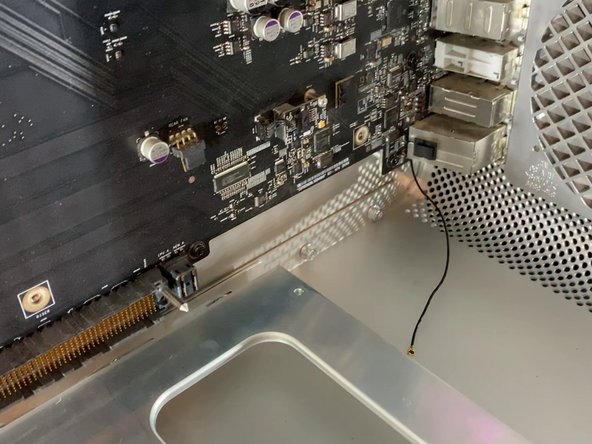
    • Unclip the bluetooth antenna

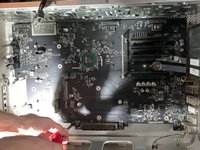
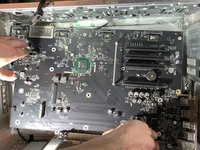
  23. Mac Pro 2009-2012 Teardown, Remove the motherboard: step 23, image 1 of 3 Mac Pro 2009-2012 Teardown, Remove the motherboard: step 23, image 2 of 3 Mac Pro 2009-2012 Teardown, Remove the motherboard: step 23, image 3 of 3
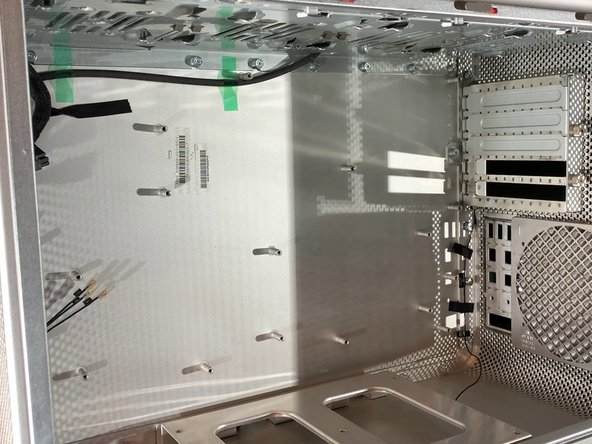
    • Unscrew the 10 screws holding in the motherboard

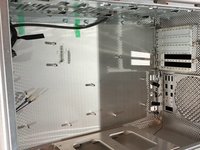
  24. Mac Pro 2009-2012 Teardown, Change the case: step 24, image 1 of 1
    • Follow the steps in reverse for reassembly!

Ben Capehart

Member since: 06/09/21

10,161 Reputation

18 Guides authored

Team

Global Fixers Member of Global Fixers

Community

59 Members

425 Guides authored

0 Guide Comments

Add Comment

View Statistics:

Past 24 Hours: 8

Past 7 Days: 61

Past 30 Days: 317

All Time: 9,318